Ruflo MCP Setup Guide
Step-by-step instructions to register Ruflo as an MCP server and start orchestrating agents from Claude Code, Cursor or any MCP client.
Unifying AI Development with the Model Context Protocol
The Model Context Protocol (MCP), open-sourced by Anthropic, has quickly become the industry standard for connecting artificial intelligence assistants to external data sources and developer tools. Before MCP, every AI framework had its own proprietary tool structure, forcing developers to rewrite file utilities, API wrappers, and search connectors for every client. MCP provides a clean, unified JSON-RPC protocol, allowing any compatible AI client—such as Claude Code, Cursor, Windsurf, or VS Code—to discover and execute tools securely.
Ruflo features out-of-the-box, native support for the Model Context Protocol. By running Ruflo as an MCP server in your local workspace, you instantly bridge the gap between your favorite AI assistant and our high-performance agent orchestration engine.
This guide provides step-by-step instructions to configure, run, and verify the Ruflo MCP server, giving your client persistent semantic memory, dynamic swarm execution, and robust auto-correction capabilities in under five minutes. Let's get started!
Installing the CLI and Initializing the Workspace

Setting up the Ruflo MCP server is extremely straightforward. First, ensure you have Node.js (v18+) and npm installed on your machine. Using your terminal, run the global installation command: 'npm install -g @ruvnet/ruflo' (or 'bun add -g @ruvnet/ruflo' if you prefer Bun). This installs the CLI executable along with the core agent runtime.
Once installed, navigate to your active software project directory and initialize your Ruflo workspace: 'ruflo init'. This command creates a localized '.ruflo' configuration folder containing an 'agents.json' file (where you define your swarm roles) and a 'memory.db' local SQLite instance to handle persistent state.
The initialize script also registers the local MCP server endpoint and creates default agent templates. Run the command: 'ruflo mcp start' to verify that the server launches successfully. By default, the server will bind to port 9090 and wait for incoming JSON-RPC connections over Server-Sent Events (SSE).
Registering the MCP Server in Your Favorite AI Client
Now that the Ruflo MCP server is running, you need to register it in your preferred AI editor or client. Let's walk through the configuration for the three most popular environments:
1. Claude Code: Open your global Claude Code configuration file (typically located at `~/.claude/config.json` on macOS/Linux or `%USERPROFILE%\.claude\config.json` on Windows) and add the following entry to the 'mcpServers' block: 'ruflo': { 'command': 'ruflo', 'args': ['mcp', 'run'] }. This tells Claude Code to launch Ruflo automatically as a subprocess.
2. Cursor: Navigate to Settings > Beta > MCP, click 'Add New MCP Server', set the Name to 'Ruflo', the Transport Type to 'command', and enter: 'ruflo mcp run' in the command input box. Click save, and you will see the active status light turn green.
3. Windsurf: Navigate to Settings > Advanced > MCP, click 'Register Server', set the name to 'Ruflo', and enter: 'ruflo mcp run' as the executable script. Windsurf will immediately index the available tools and memory registers, making them accessible in your active editor chat.
Verifying and Diagnostics
Once the registration is complete, you should run a quick diagnostic check to ensure that all tools are properly connected and that the model runtime has full permissions.
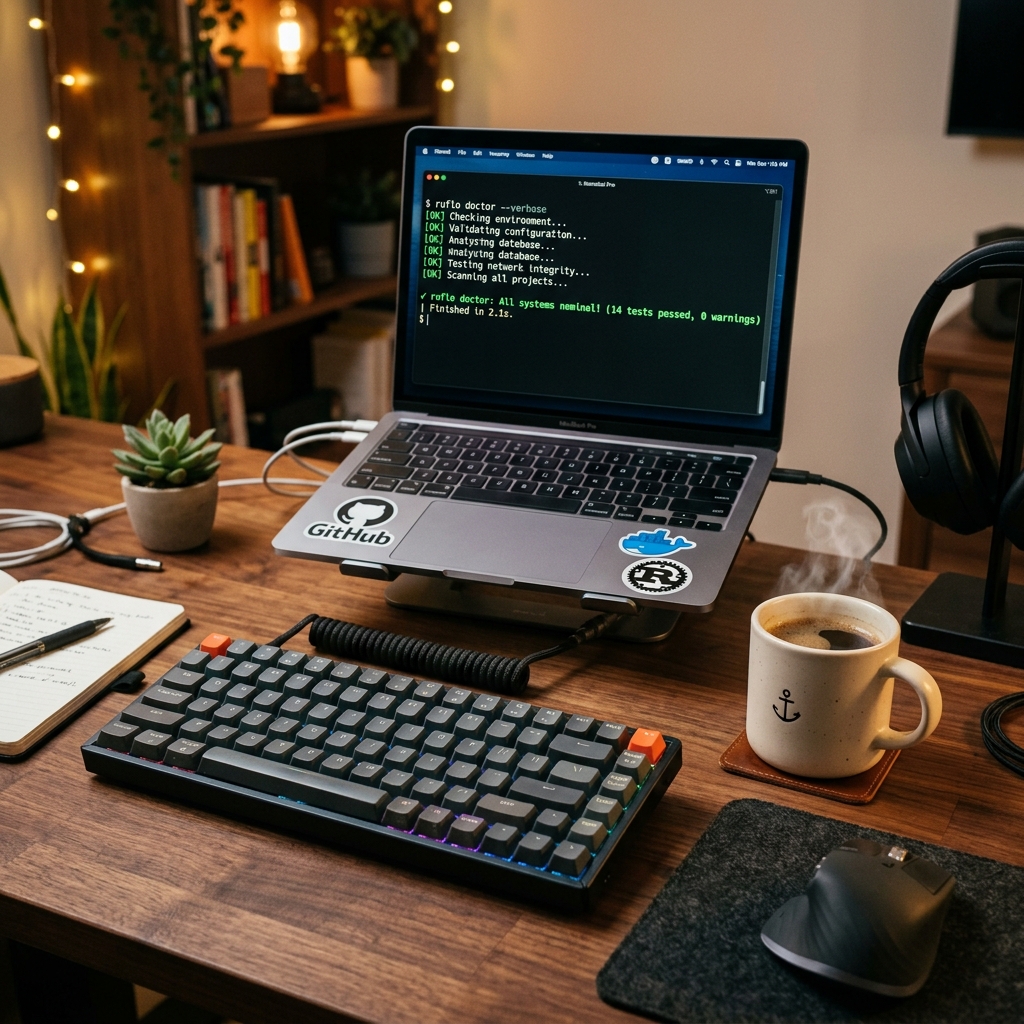
Open your terminal and run: 'ruflo doctor'. This command initiates a comprehensive system sweep, verifying that: your LLM API keys are active, your filesystem permissions allow agent file modification, and your client can communicate with the MCP server without firewall issues. If any checks fail, the CLI will output clear, actionable steps to resolve them.
Once the diagnostics pass, you can test the integration by prompting your AI assistant: 'Check Ruflo memory for the project structure'. The assistant will call the Ruflo MCP server, query the local database, and list the indexed files and conventions. You now have a fully functional, memory-backed multi-agent development environment ready to build elite software!
Frequently asked questions
No. When configured as a command server, your AI client (like Cursor or Claude Code) will spawn and manage the Ruflo process automatically in the background.
The server exposes filesystem reading/writing tools, local test execution tools, short-term and long-term memory query tools, and swarm deployment hooks.
Yes. The `ruflo mcp` startup command accepts a `--port` flag, allowing you to run multiple instances on custom HTTP endpoints.
MCP requires all client commands to pass through a local gateway, giving you absolute control over what tools the agent is permitted to execute.
Yes, both clients can query the same local SQLite database and memory context simultaneously, facilitating an integrated dev flow.
You can use the official Anthropic MCP Inspector to interactively debug tools, verify parameters, and trace JSON-RPC messages.